No green screen · Processed locally

Remove Background from Video

Keep the person and supported audio. Export transparent WebM locally, with no uploads or added watermarks.

See actual results
3 free tasks dailyNo sign-upUp to 120 seconds
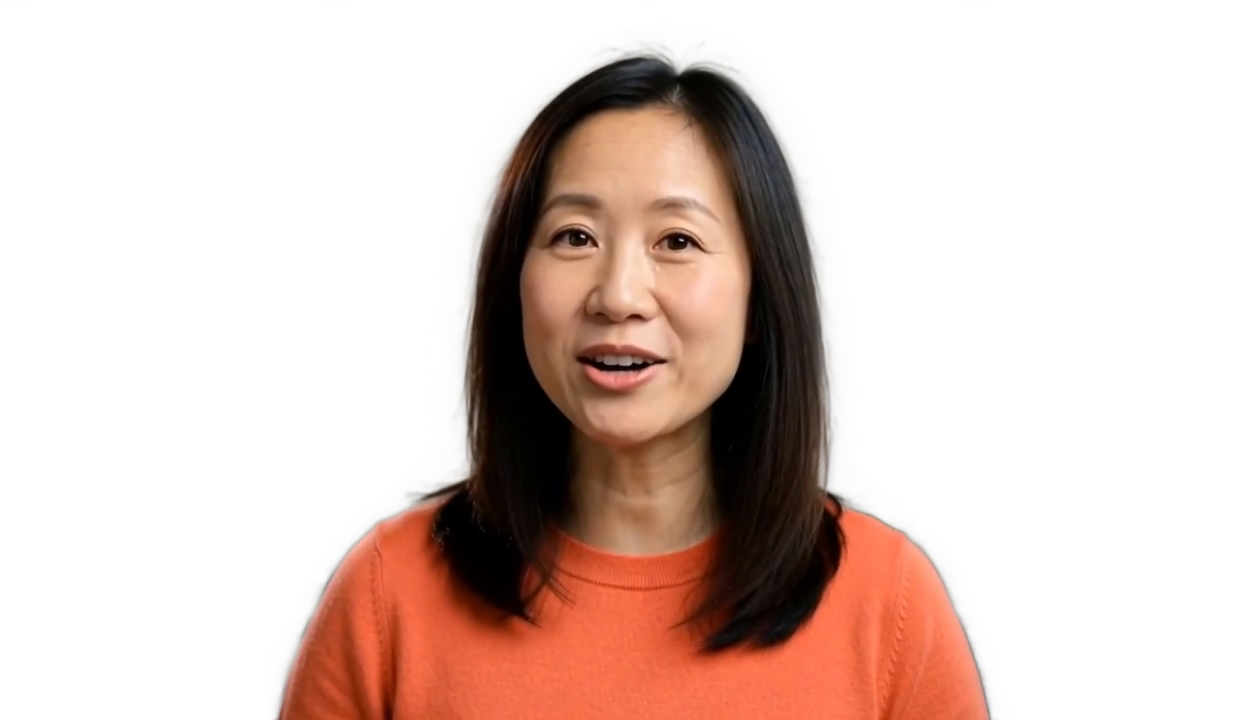
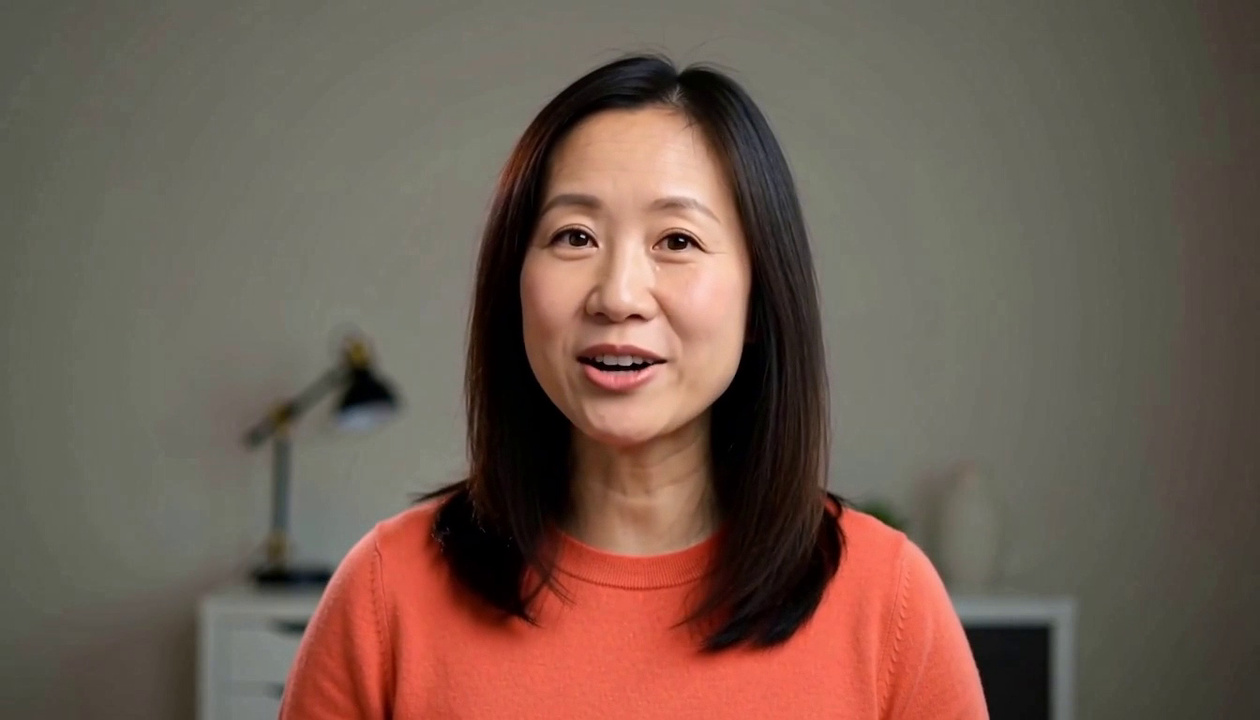
The same talking-head clip after actual background removal
AI-generated presenter wearing an orange top before background removal
Loading video comparison…
OriginalDetailed edges
AI-generated source · Actual CutoutUp result

Remove a portrait video background

Choose a portrait video

Your footage stays in this browser and is never uploaded.

Your media stays local

Your video, audio and decoded frames stay in this browser. Pages and processing models load from this site.

Real transparent WebM

Download VP9 video with alpha transparency. Check the sample in your editor before starting a project.

Keep the original audio

Supported audio is kept or converted to Opus. If it cannot be preserved, the tool stops instead of making a silent replacement.

See the actual output

Video background removal for people and products

See how a video background remover fits a tutorial, product edit or fitness introduction. Each case pairs a different source with its actual export and explains what to check before using it. The source clips are AI-generated; the cutout masks have not been hand-retouched.

Portrait videos Use portrait AI without a solid backdrop. Check hair, hands and moving edges.

Products and props Use color keying with a solid backdrop distinct from the subject. General object removal in complex scenes is not supported.

01Talking-head videos

Portrait AI · No green screen

Keep your presenter and voice in a new scene

The presenter and supported speech are retained. Inspect the fine hair and shoulder outline over light and dark backgrounds; the preview and downloaded WebM use the actual Detailed edges output.

Get the WebM
Processing notes and specifications

See a presenter speak, keep the voice through background removal, and move into a new scene. The finished video pairs the actual transparent export with a website capture and titles. Open the comparison to inspect the same presenter, or download the transparent WebM for your own edit.

AI-generated source · Detailed edges · 15.1 s · 1260 × 720 · 24 fps · English speech retained
02Bottles & packaging

Color key · Solid backdrop required

Turn a moving product into a finished ad

The actual export retains the cap, body and base through the turn. Fine colored edges remain in places; inspect the moving outline over your intended background. The finished ad adds motion, graphics and sound in an editor.

Get the WebM
Processing notes and specifications

Watch one bottle turn, tilt and travel across a finished product ad. The opening briefly reveals the green-screen source before the product moves into two graphic campaign settings. Music, short ad lines and the moving cutout make the product the focus. Compare the same source with its actual color-key export, or download the transparent WebM to build your own campaign.

AI-generated source · Color key · 15.1 s · 1260 × 720 · 24 fps · music retained

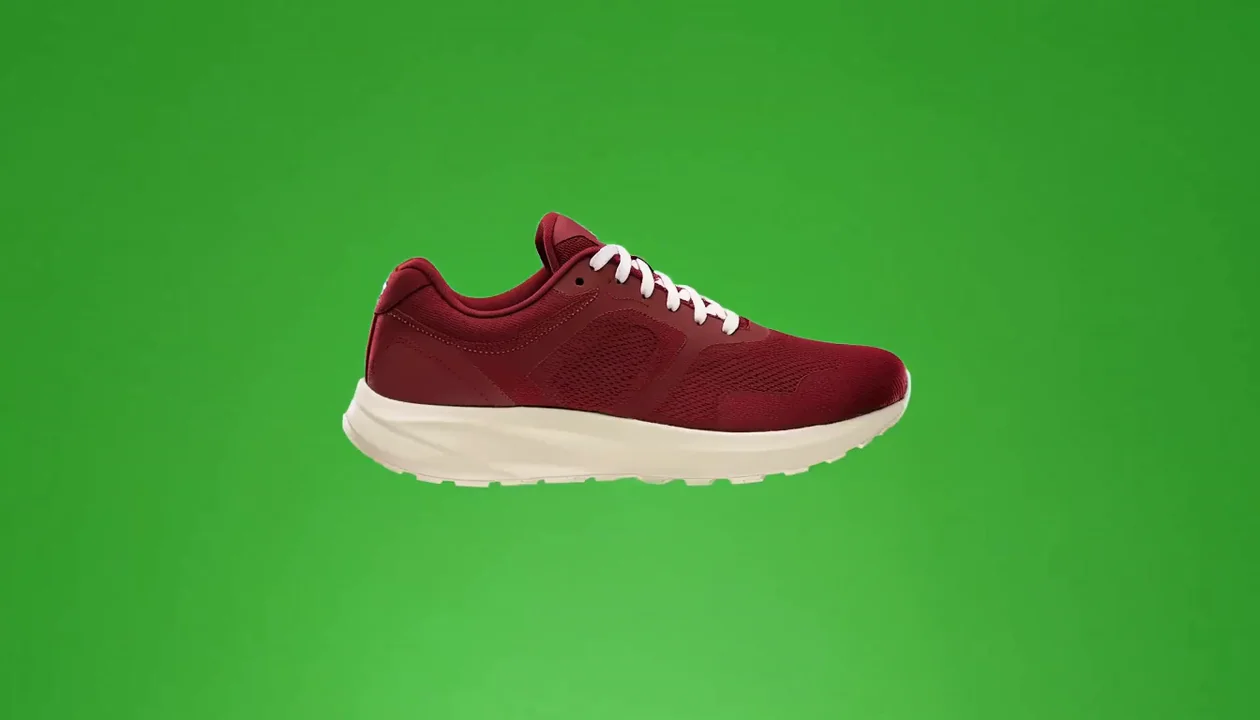
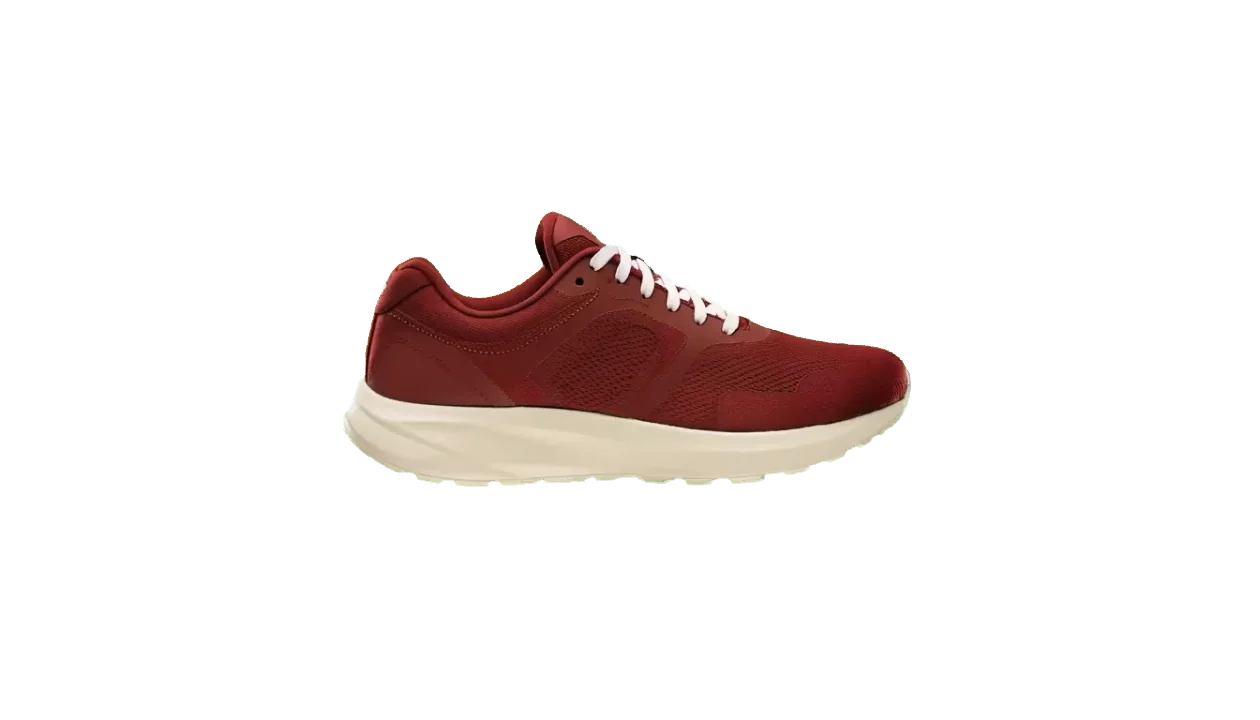
Actual transparent color-key output retaining the sneaker, cream sole and laces
AI-generated red sneaker turning against an unevenly lit green backdrop
OriginalColor key

03Footwear & rotating products

Color key · Solid backdrop required

Keep the laces and light sole as a sneaker turns

The turning shoe, laces and sole remain visible, with fine colored edges along the sole. This green-backdrop example does not demonstrate automatic object removal from an ordinary desk scene.

Get the WebM
Processing notes and specifications

A rotating shoe clip can show the upper, sole and laces in a short product introduction. This source has an unevenly lit green backdrop, a dark red upper and cream details, so a broad color selection can remove more than intended. Sample the actual green and start with a lower tolerance. Play the full turn over the background you plan to use, checking that the laces and sole remain visible as their lighting changes.

AI-generated source · Color key · 5.2 s · 1260 × 720 · 24 fps · audio retained

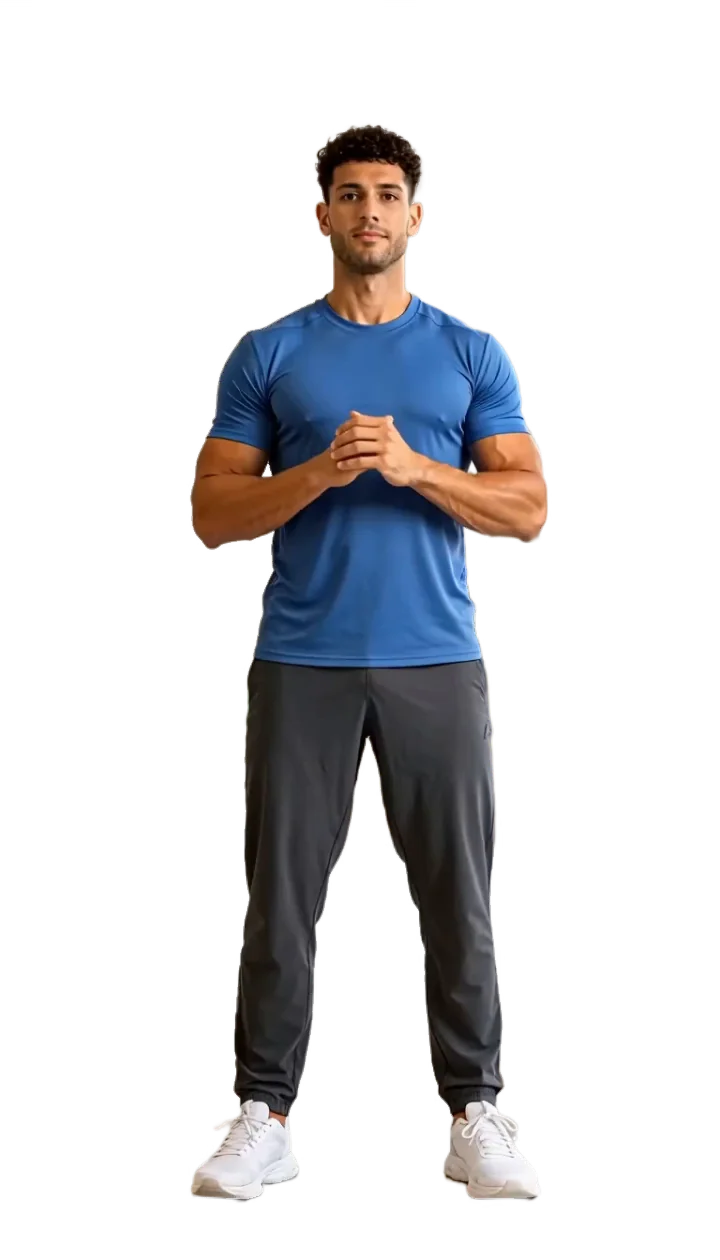
Actual Detailed edges output of the same man with transparent surroundings
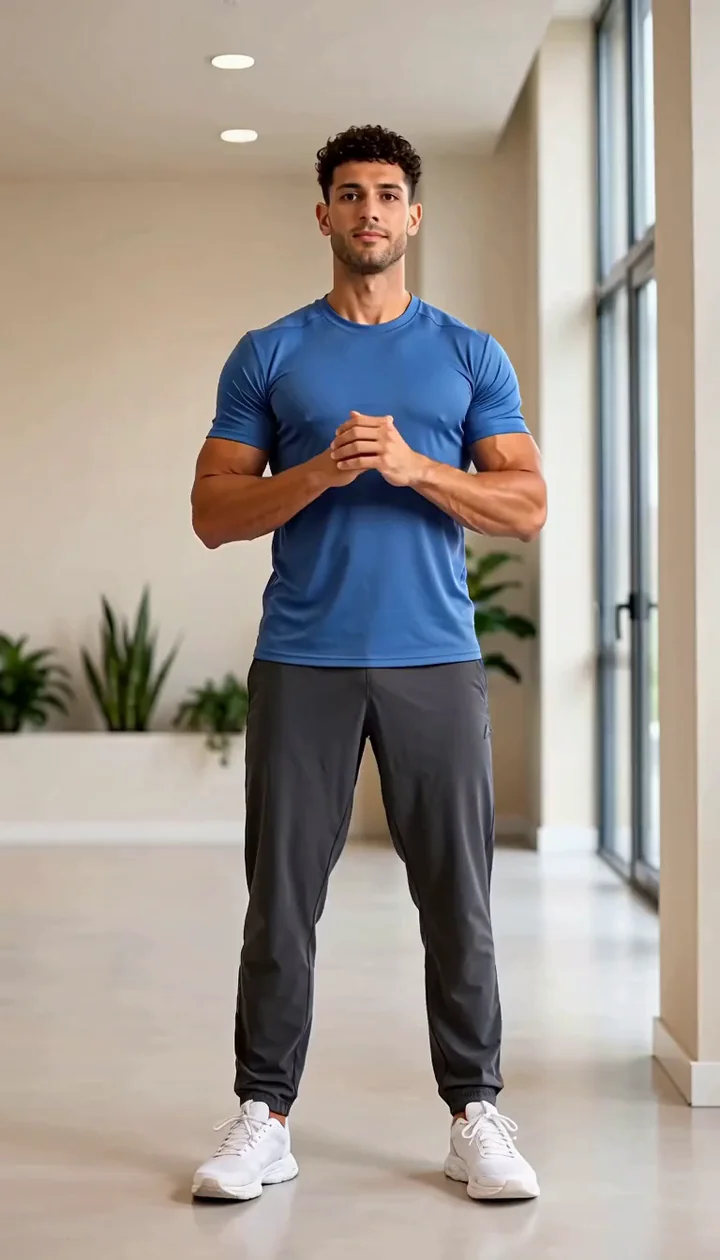
AI-generated man exercising in a room before background removal
OriginalDetailed edges

04Full-body movement

Portrait AI · No green screen

Place full-body movement over a fitness title

Arms, knees and shoes remain visible through the movement. Light outlines and thin-edge gaps remain; inspect the whole clip, especially crossing limbs.

Get the WebM
Processing notes and specifications

Use a short exercise cutout beside a session title or above a new scene in your editor. Keep the full body inside the source frame and use portrait AI to separate it from the room. This vertical sample shows moving arms and knees, making it useful for checking the spaces between limbs as well as the outer outline. Leave room around the hands and shoes when arranging the downloaded layer, then watch the entire movement at the size your audience will see.

AI-generated source · Detailed edges · 6.6 s · 720 × 1260 · 24 fps · audio retained

How it works

How to remove background from video

For a person filmed in an ordinary room, use the portrait workbench above. These steps take you from a short source clip to a transparent layer you can check in your editor.

  1. Choose a useful excerpt

    Trim the moment you need to 120 seconds or less, then select the MP4, MOV or WebM. Keep the person fully in frame and clearly lit. Removing a background cannot recover hands or clothing cut off in the original shot.

  2. Compare the edge detail

    Start with Fast to try the clip. Choose Detailed edges when hair or clothing needs a closer look; it takes more resources and can still leave halos or gaps. Use the same excerpt when comparing the two modes.

  3. Check the downloaded layer

    Play the exported WebM through head turns and hand movements, and listen to the audio. In a compatible editor, place it above your screen recording or another colored layer to check the transparency before building the rest of your edit.

Which mode fits your clip?

Fast
A lightweight portrait segmentation model. Start here to check a short clip quickly.
Detailed edges
A larger matting model with edge color cleanup. It can recover finer detail, but takes more resources and can still leave motion artifacts.

Video tools

More local media tools

Choose the tool for the result you need.

FAQ

Video background remover: common questions

The useful details about files, sound, transparency and your browser.

Turn a portrait clip into a transparent layer.

Start with a short video. Check the edges and sound, then download a transparent WebM for your edit.