
CutoutUp
Go to workbench

Color key · video tool

Green screen remover

Choose a green or blue screen video, preview the removal, then export transparent WebM or replace the screen with a color or local image. Everything runs in your browser.

Choose a green-screen video

On your device · No account · Your file stays local

See the actual result

Drag to compare before and after

Result
Original
Loading sample…
OriginalResult
MiniMax AI bottle in motion · 15.1-second actual color-key export. Try this sample loads its recorded settings.
Sample sources and processing

Product color keys

Different shapes. Different edges to check.

Two independent AI-generated product clips, keyed and exported with this tool. Drag for a frame comparison, play to inspect motion, or download a source and reproduce the settings.

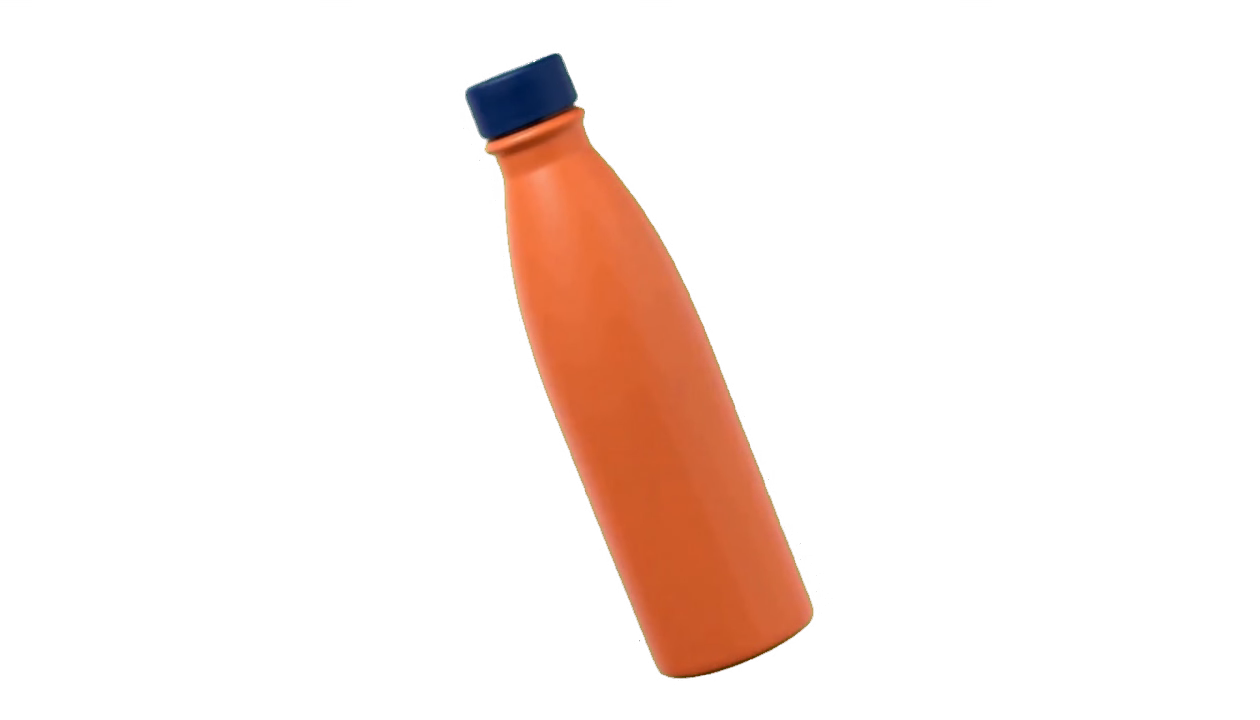
Tilting orange bottle after green-screen removal
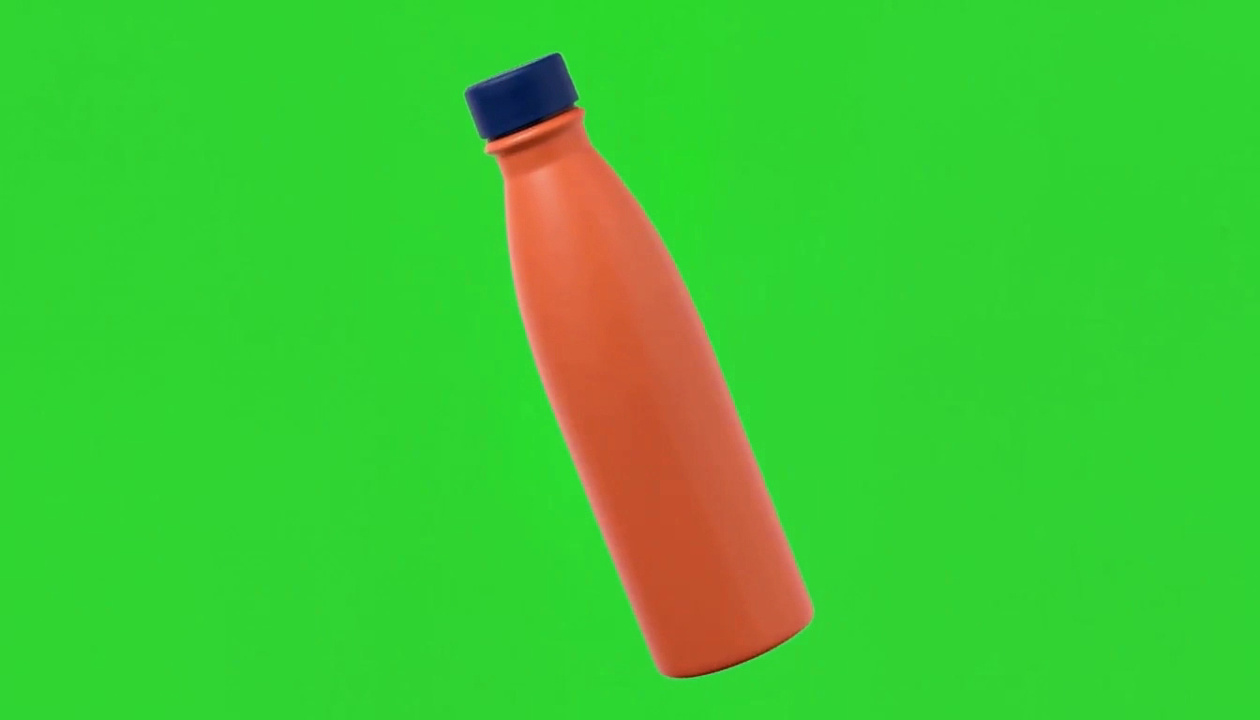
Orange bottle tilting against a green screen
OriginalTransparent WebM

01Bottles & packaging

Color key · green screen

Follow the bottle as it tilts

The bottle tilts and rotates so you can inspect edges in motion. Sample #2fd631 with 18% removal strength, 12% softness and 70% spill cleanup to reproduce this transparent export.

Look closely:

Watch the cap, base and reflections as the bottle tilts. Fine color fringes may remain; transparent export cannot reconstruct source detail.

MiniMax AI source · 1344 × 768 · 15.1 seconds · 1260 × 720 color-key export, no manual retouching.
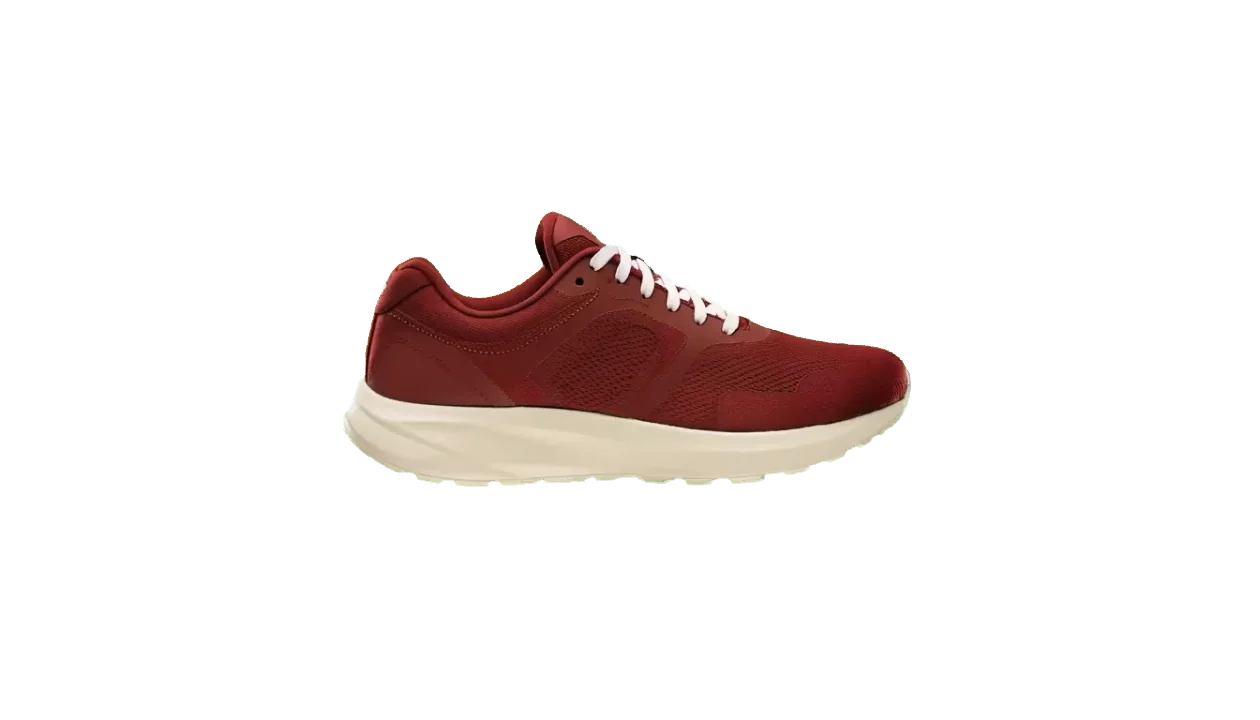
Sneaker after green-screen removal
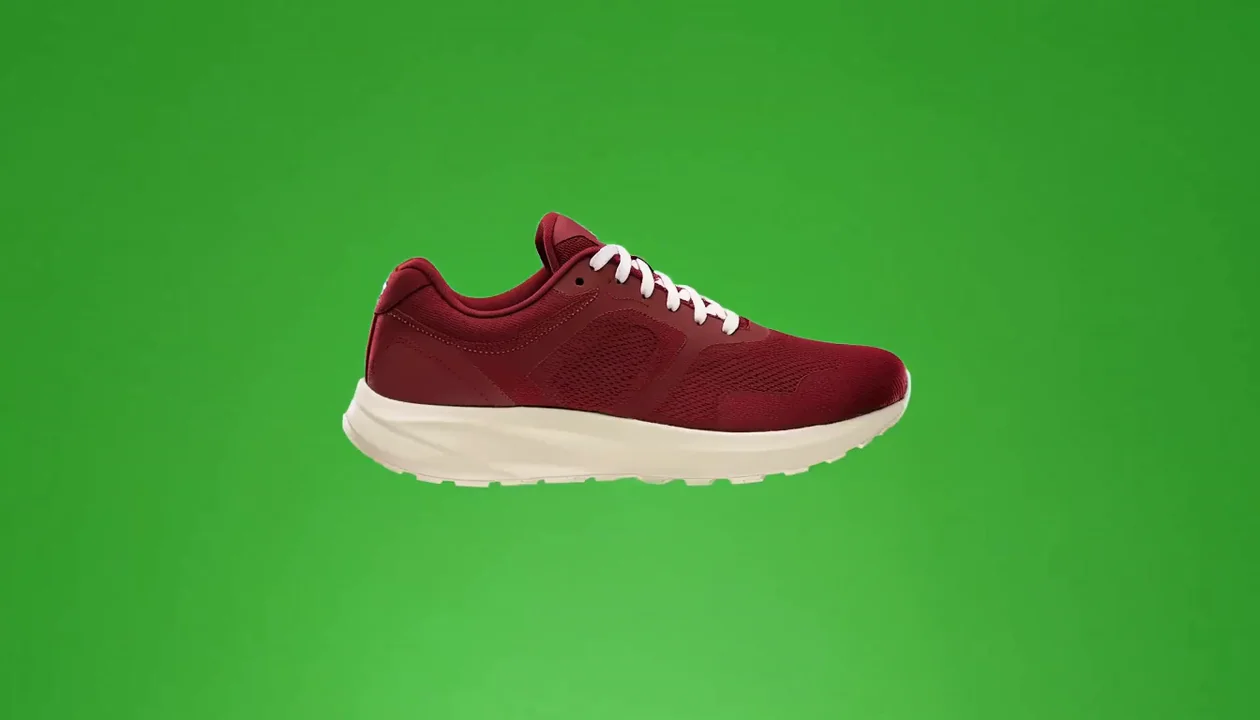
Dark red sneaker turning against green
OriginalTransparent WebM

02Footwear & fashion

Color key · lower removal strength

Follow the laces as the shoe turns

A dark red upper and light sole expose different outlines during rotation. For this uneven screen, sample #318e2e and lower strength to 10% and softness to 6% to protect lighter detail.

Look closely:

Check the lace gaps and sole boundary. Some fine green fringe remains; inspect the download over your final background.

MiniMax AI source · 1260 × 720 · 5.2 seconds · 70% spill cleanup, actual tool export.

How to remove a green screen from video

  1. 01

    Choose a short clip

    Select an MP4, MOV or WebM with a solid backdrop. Start with a few seconds so you can judge the key before processing a longer take. Your source stays on this device.

  2. 02

    Sample and refine

    Pick directly from the frame, adjust removal strength, and check the live preview. Open advanced settings if the edges need more work.

  3. 03

    Check the exported result

    Choose transparent output for an alpha layer, or a solid color or local image to burn in a background. After export, check the full video, edges and audio. After changing a setting, you can still download the previous export or restore its settings. Export again to apply the new settings.

Color keying for people and objects

A green screen remover separates pixels by color. It can work on a presenter, a product turntable or a prop because it does not depend on a person detector. The scene still needs a backdrop whose color differs from the foreground.

Presenter overlays

Create an overlay for a tutorial or stream. Keep the screen evenly lit and place the presenter away from it to reduce colored reflections on skin and clothing.

Product and prop footage

Key a moving object filmed on a solid backdrop. A green object against a green screen is a poor match; choose a contrasting screen and sample that color instead.

Green screen remover input and export limits

Video input
MP4, MOV or WebM; up to 2 GB, 120 seconds and the pixel count of 3840 × 2160. One video track and at most one audio track.
Export
Transparent VP9 WebM, or an opaque MP4 when this browser can encode it and opaque WebM otherwise; aspect ratio preserved, up to a 1280 × 720 landscape or 720 × 1280 portrait bounding box and 30 fps; at most 2 GB.
Audio
Supported source audio is retained or converted to Opus. The tool stops if it cannot verify audio preservation.
Processing
Local browser processing. No sign-up or watermark added. Try current desktop Chrome; codec support is checked on your device. Physical phones remain unverified.

Getting a cleaner green-screen key

Sample a middle shade of the screen, then increase tolerance in small steps. Too much tolerance can remove green clothing and low-contrast edges. Softness smooths the transition; spill cleanup changes edge colors and is best used cautiously. The export preview is a useful check, but a separate editor test over your final background remains necessary.

Green screen remover questions

Can I remove a blue screen or another solid color?

Yes. Choose the color field or sample your backdrop from a source frame. The default is green, but color keying is not limited to green screens.

Can this remove the background around a product?

It can key a product against a suitable solid backdrop. It does not recognize a product against a room, street or other complex scene. For a person without a green screen, use the portrait tool on the homepage.

Why did part of my subject disappear?

The missing region probably resembles the selected key color. Lower tolerance or pick a more representative backdrop shade. If subject and screen have the same color, reshoot against a contrasting backdrop.

Does the download have a transparent background?

Transparent output is VP9 WebM. You can instead choose a solid color or a local image; that produces an opaque composite, using MP4 when this browser can encode it and WebM otherwise. Your target editor must support WebM alpha for a transparent layer.

Is the footage uploaded?

No. Selected video, audio and frames remain in browser memory. The website still makes ordinary page and asset requests. Refreshing or closing the page clears this task.