


CutoutUp
Go to workbench

Subject cutout · background replacement

Change video background

Change video background colors or add your own image. Choose Portrait AI for people or a color key for green or blue screens. Process locally.

Choose a portrait video to change its background

On your device · No account · Your file stays local

See the actual result

Drag to compare before and after

Result
Original
Loading sample…
OriginalResult
Fictional MiniMax AI presenter · Detailed edges + blue background · actual MP4 export.
Sample sources and processing

Backgrounds in the actual download

A plain color for lessons. Your own image for products.

Use portrait AI or a color key, then choose the new setting. These independent examples show solid-color and local-image replacements baked into the downloaded MP4.

Presenter against a solid blue replacement
Fictional presenter in a pale blue room
OriginalBlue-background MP4
Download composite MP4

01Lessons & explainers

Portrait AI · Detailed edges

Give a short lesson a consistent blue backdrop

Choose Portrait AI with Detailed edges, then replace the room with #2455bb. A plain backdrop works for short lesson intros, explainer inserts or a series with a consistent color.

Look closely:

Inspect the hand gesture, ears and shirt outline. Dark backgrounds reveal pale edge halos; a color change does not relight the presenter.

Fictional MiniMax AI presenter · 1260 × 720 · 6.6 seconds · actual MP4 export with its audio track.

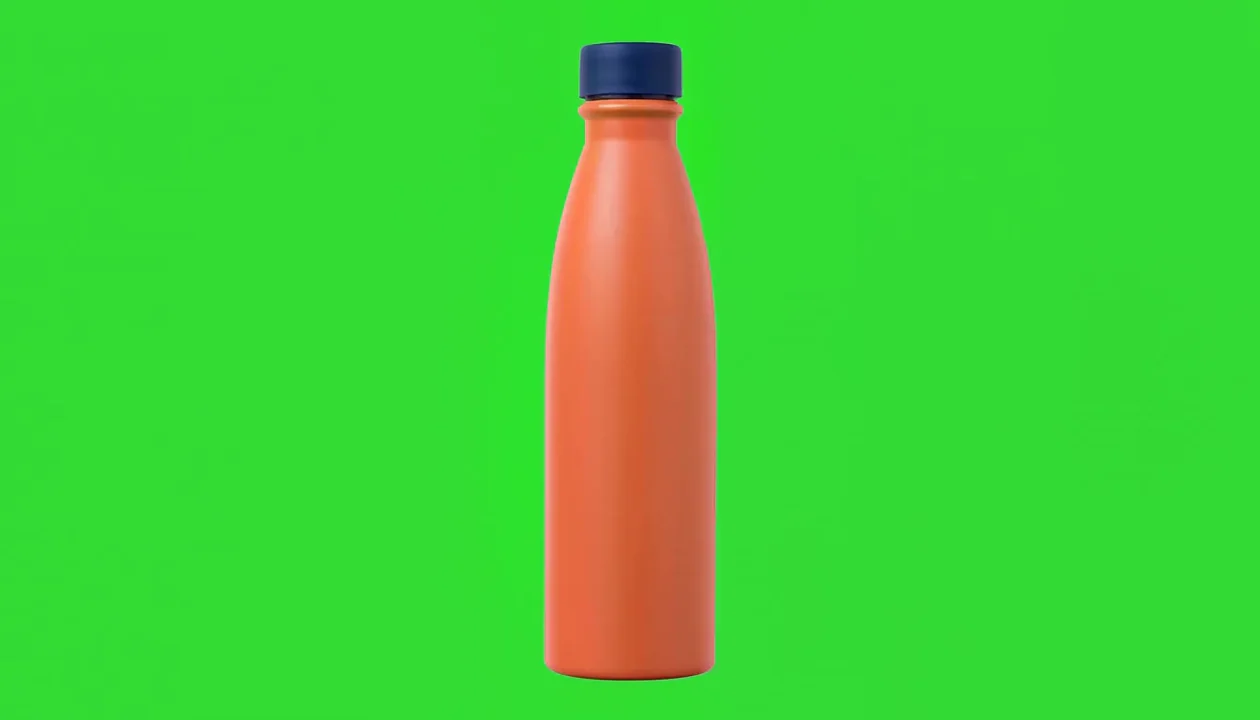
Orange bottle on a warm geometric background
Orange bottle against green
OriginalImage-background MP4
Download composite MP4

02Products & brand assets

Color key · local image background

Move a green-screen bottle onto a warm graphic

Choose Color key, sample #27c22f and upload the original warm geometric backdrop. The product framing and movement come from the source; the image is center-cropped to fill the video.

Look closely:

Inspect the cap and base edges. The backdrop is included in the file, but the tool does not add a contact shadow or change the product lighting.

MiniMax AI product + original geometric artwork · 1260 × 720 · 5.2 seconds · actual MP4 export.

Change video background in three steps

  1. 01

    Choose the removal method

    Choose Portrait AI for a clearly visible person, or Color key for a green, blue or other solid screen. Use the source preview to check framing and movement. The tool checks input and export support before it starts.

  2. 02

    Choose a color or image

    Set a solid background color or select a PNG, JPEG or WebP from your device. Images fill the video frame with a centered crop. Choose Detailed edges when fine hair needs closer inspection.

  3. 03

    Download the actual composite

    After export, check the full video, edges and audio. After changing a setting, you can still download the previous export or restore its settings. Export again to apply the new settings.

A new setting for people and products

Portrait AI separates a person; color keying handles products against a suitable solid backdrop. Both can combine the cutout and a replacement background in one local export.

Consistent colors for a short tutorial

Use a plain color to keep a talking-head clip visually consistent. A color that contrasts with hair and clothing also makes edge problems easier to see before sharing.

Your own still-image backdrop

Use an image you have permission to use. Match its perspective and lighting to the subject; an attractive background alone will not correct mismatched lighting or missing foreground detail.

Video background changer formats and limits

Video input
MP4, MOV or WebM; up to 2 GB and 120 seconds, one video track and at most one audio track; input up to a 4K pixel count.
Background image
PNG, JPEG or WebP up to 10 MiB and 16 million pixels. The image is cropped from the center to fill the video; animated backgrounds are not supported.
Video export
Transparent output is VP9 WebM with Opus audio when present. A color or image uses opaque H.264/AAC MP4 when supported, otherwise opaque VP9/Opus WebM. Format is shown after inspection. Up to 720p bounding box, 30 fps and 2 GB.
Privacy and access
Selected video, audio and background image stay on this device. No account or watermark added. Current desktop Chrome is the first browser to try; phones remain unverified.

Make the replacement believable

Start with a clearly visible person, good light and limited motion blur. Fast mode is useful for a quick trial; Detailed edges may keep finer hair but takes longer and does not reconstruct missing details. Inspect the downloaded composite against your chosen background. A light halo can be more visible over a dark backdrop, while a busy image can hide a weak edge in the preview.

Video background changer questions

Is the replacement background included in the download?

Yes when you choose a color or image. The tool encodes the person and the chosen background into one completed opaque video. Choose Transparent instead when you need an alpha layer.

Can I use my own photo?

Yes. Choose Local image and select a supported PNG, JPEG or WebP. It stays in this browser and fills the video with a centered crop. Use an image you own or have permission to use.

Why do I get WebM instead of MP4?

The browser must support the video encoder and, when your source has audio, the audio encoder needed for MP4. If that path is unavailable, the tool uses WebM and shows that choice before processing. The filename always matches the actual container.

Can I replace the background of product or pet footage?

Choose Color key when the product or pet is filmed against a distinct solid screen. Portrait AI remains for people; general object removal against a complex scene is not supported.

Can I download a transparent MP4?

Transparent MP4 is not available here. Choose Transparent for a VP9 WebM alpha layer, or choose a color or image for an opaque MP4 when supported and WebM otherwise. Test WebM transparency in the receiving editor.